
 EN
 简体中文
 Español
 Français
VOS3000 client tips
Most time in the VOS3000 client goes into finding the right row. Wildcards, a few keys and the table colours save a lot of it.
Updated · By the VOS3000 Web team
Quick answer: In the VOS3000 client, filters accept * and ? as wildcards, F5 enables filtering, and ALT shortcuts open the main tables, such as ALT + D for Mapping gateway and ALT + H for Cdr. Cell colours show unsaved changes, barred gateways, IP conflicts and accounts with insufficient balance. Client preferences are under System > Local settings.
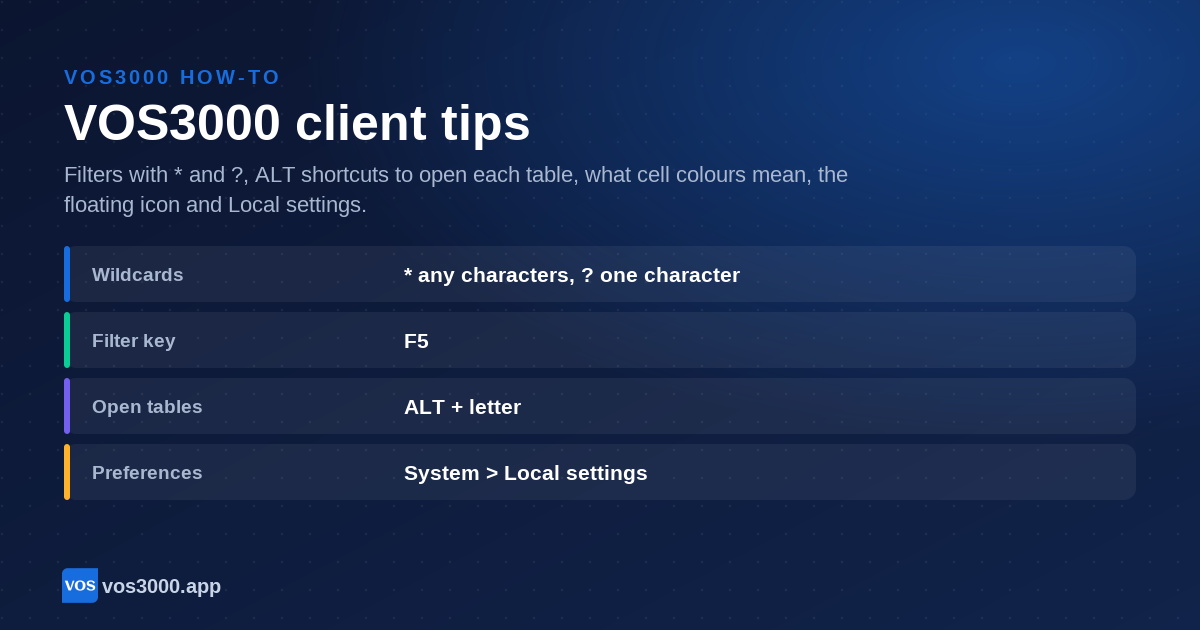
- Wildcards
- * any characters, ? one character
- Filter key
- F5
- Open tables
- ALT + letter
- Preferences
- System > Local settings
Filters with * and ?
Filters in the client tables accept two wildcards:
| Filter | Matches |
|---|---|
| 800* | Any string that starts with 800. |
| 888??00 | Any 7-digit string that starts with 888 and ends with 00. |
* stands for any number of characters and ? for exactly one. Every other character is matched as it is. Press F5 to apply the filter.
In CDR and the reports built from it, the time filter can use either Beginning of the call or End of the call. The first matches calls that started in the time span, the second calls that ended in it. Most operators use End of the call, so stick with it when you compare totals with a carrier. See CDR.
Keyboard shortcuts
| Keys | Opens or does |
|---|---|
| F5 | Enable filtering |
| CTRL + C | Copy the selected table cells |
| ALT + F | Rate management |
| ALT + K | Shortcuts |
| ALT + S | Package management |
| ALT + D | Mapping gateway |
| ALT + G | Routing gateway |
| ALT + C | Account management |
| ALT + P | Phone management |
| ALT + A | Current call |
| ALT + H | Cdr |
| ALT + U | User management |
| ALT + L | System log |
CTRL + C copies the selected cells, so you can paste a list of gateway IPs or account numbers into a spreadsheet or a message without exporting the whole table.
What the cell colours mean
A white cell is normal. Other colours tell you the state of a row at a glance.
- Any table: a row to be added, to be modified or to be deleted after you click the apply button; a selected row; an operation that failed.
- Gateway tables: a gateway with outgoing or incoming calls barred; a gateway with all calls barred; mapping gateways with conflicting IP address settings.
- Account table: an account with insufficient balance; an account that is terminated.
The pending colours matter most. A new, changed or deleted row is not used by VOS3000 until you click apply. If a change seems to do nothing, check that the row is not still waiting. A failed operation keeps its own colour, so check those rows before you close the window.
The IP conflict colour is worth watching on the mapping gateway table: it marks mapping gateways whose IP settings clash, so it is unclear which customer a call from that IP belongs to.
The floating icon
Users with query rights, except agents, see a small floating icon. It shows:
- Top: the server IP, handy when you have clients open to several servers.
- Left bottom figure: the current concurrency, the number of calls in progress.
- Right bottom figure: the queue length of CDR still to be processed. If it keeps growing, the server is behind on writing CDR.
Local settings
System > Local settings holds the preferences for this copy of the client:
- Minimize: send the client to the status bar or to the system tray.
- No operation automatically locked: lock the client when nobody is using it. See system log and lock.
- Enable voice alarm: play alarm audio in the client.
- Enable update prompt: show a prompt when there is an update.
- Recover default settings: undo your local changes.
For the basics of logging in and the menus, see the client guide. If you would rather work in a browser, compare the options in client vs web.
Questions about this topic
How do I search for numbers starting with a prefix in VOS3000?
Use * in the filter. 800* matches every string that starts with 800. Use ? for exactly one character, so 888??00 matches 7-digit strings that start with 888 and end with 00.
What is the shortcut to open CDR in the VOS3000 client?
ALT + H opens Cdr. ALT + A opens Current call, and ALT + L opens System log.
Why is a row a different colour in the VOS3000 client?
The colour shows its state: a change not yet applied, a selected row, a failed operation, a barred gateway, a mapping gateway IP conflict, an account with insufficient balance or a terminated account. White means normal.
My change is visible in the table but VOS3000 is not using it. Why?
New, changed and deleted rows wait for the apply button. Until you click it, they only show in their pending colour.
Run VOS3000 without the server work
Pick a VOS3000 server hosted by us, or have us install VOS3000 on your own server. VOS3000 Web and the Android app come with it.
Keep reading
Using the VOS3000 client
Log in, find your way around the menus, and import or export data.
VOS3000 client vs VOS3000 Web
The desktop client or a browser panel: what each is for and when to use it.
Search and read CDR
Find calls, read every CDR column and understand termination reasons.
Add a mapping gateway
Set up a customer gateway: types, IPs, line limits, prefixes and billing.