
 EN
 简体中文
 Español
 Français
VOS3000 system log: who changed what
A gateway is gone or a rate looks wrong, and nobody remembers touching it. The System log is where VOS3000 keeps the record.
Updated · By the VOS3000 Web team
Quick answer: Open Navigation > System management > System log (or press ALT + L) to see what was done in the VOS3000 client. Each row has a Type, Record time, Operating User, Event and Detail. Right-click a row and choose Detail to read the full operation. To keep an unattended client safe, use System > Lock system.
- Where
- System management > System log
- Shortcut
- ALT + L
- Who did it
- Operating User column
- Walk away
- System > Lock system
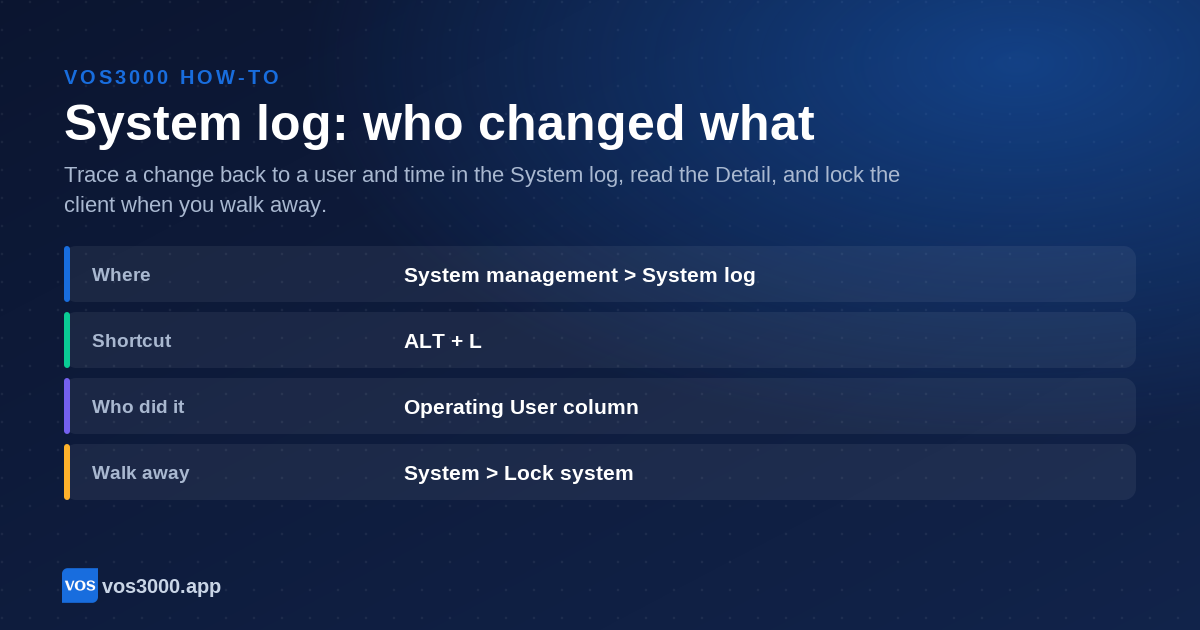
The VOS3000 client writes a log of what happens on the system. When a setting changes and you need to know who did it and when, this is the first place to look. The log only helps if each person has their own login, so set that up first (see users and permissions).
Open the system log
In the client, double-click Navigation > System management > System log. The keyboard shortcut ALT + L opens it too.
What each column means
| Column | What it shows |
|---|---|
| Type | Information, General or Error. |
| Record time | When the entry was logged. |
| Operating User | The user who did it. |
| Event | What happened. |
| Detail | More about the operation. |
| Serial number | The entry's number in the log. |
The Detail column is often too long to read in the table. Right-click the row and choose Detail to see the operating user and the full details of the operation.
Trace a change to a user
- Open the System log and look at the entries around the time the problem started. The manual does not list which operations are logged, so check the Event column to see what your version records.
- Filter on the name you are looking for, such as the gateway name or the rate prefix. Filters accept
*for any characters, so*carrierA*matches any text that contains carrierA. Press F5 to apply the filter. - Read the Operating User and Record time of the matching rows, then open Detail to see what was changed.
- Rows with Type Error show operations that went wrong, which is useful when a change seemed to save but did not take effect.
If a whole gateway or rate table was lost, a backup brings it back faster than typing it in again; see backup and restore.
Make the log useful
- One user per person: a shared admin login makes every row show the same name. Create a user for each person in User management (ALT + U).
- Only the rights they need: someone who only reads CDR does not need the right to change gateways. Fewer people who can change things means fewer rows to check.
- Check after incidents: when an alarm fires or traffic drops, look at the log for changes made just before; see alarms.
Lock the client when you walk away
An open client on an unattended desk lets anyone make changes under your name, and the log will blame you. VOS3000 has two ways to prevent that:
- System > Lock system hides the client interface straight away. Use it before you leave your desk.
- System > Local settings has No operation automatically locked, which locks the client on its own when nobody is using it.
The same idea in VOS3000 Web
VOS3000 Web, our browser panel for VOS3000, has its own Audit Log for admins. It records every change made through the panel or the phone app, with the time, user, IP, action, target and result. It keeps the last 10000 entries, cannot be edited from the panel, and has a search box that covers the whole log. Changes made in the desktop client still go to the VOS3000 System log.
Questions about this topic
Where is the system log in VOS3000?
In the client, under Navigation > System management > System log. You can also open it with ALT + L.
How do I see the full details of a log entry?
Right-click the row and choose Detail. It shows the operating user and the details of the operation.
Why does the log show the same user for every change?
Because everyone signs in with the same login. Give each person their own user in User management so the Operating User column tells them apart.
How do I stop someone using my client while I am away?
Use System > Lock system to hide the client interface, or turn on No operation automatically locked in System > Local settings so the client locks itself when it is idle.
Run VOS3000 without the server work
Pick a VOS3000 server hosted by us, or have us install VOS3000 on your own server. VOS3000 Web and the Android app come with it.
Keep reading
Users, groups and 2FA
Staff and partner logins, permission groups, two-factor sign-in and audit log.
Using the VOS3000 client
Log in, find your way around the menus, and import or export data.
Backup and restore
Encrypted backups, daily auto backup, and restoring on another server.
Alarms and alerts
ASR, ACD, balance and server alarms with e-mail and voice alerts.