
 EN
 简体中文
 Español
 Français
Geofencing: allow or block IP ranges per gateway
Authentication says who a call belongs to. Geofencing adds a second rule: which addresses that gateway may use at all.
Updated · By the VOS3000 Web team
Quick answer: VOS3000 geofencing is a list of IP ranges kept in Operation management, Geofencing, each with an Area name, a Begin ip and a Count. On a gateway, Ip geofencing mode set to Allow accepts only addresses in the listed ranges, and Forbidden refuses them. You choose whether the signalling address, the SDP address or the RTP address is checked.
- Range list
- Operation management, Geofencing
- Gateway field
- Ip geofencing mode
- Modes
- Ignore, Forbidden, Allow
- Checks
- Signaling, SDP and RTP address
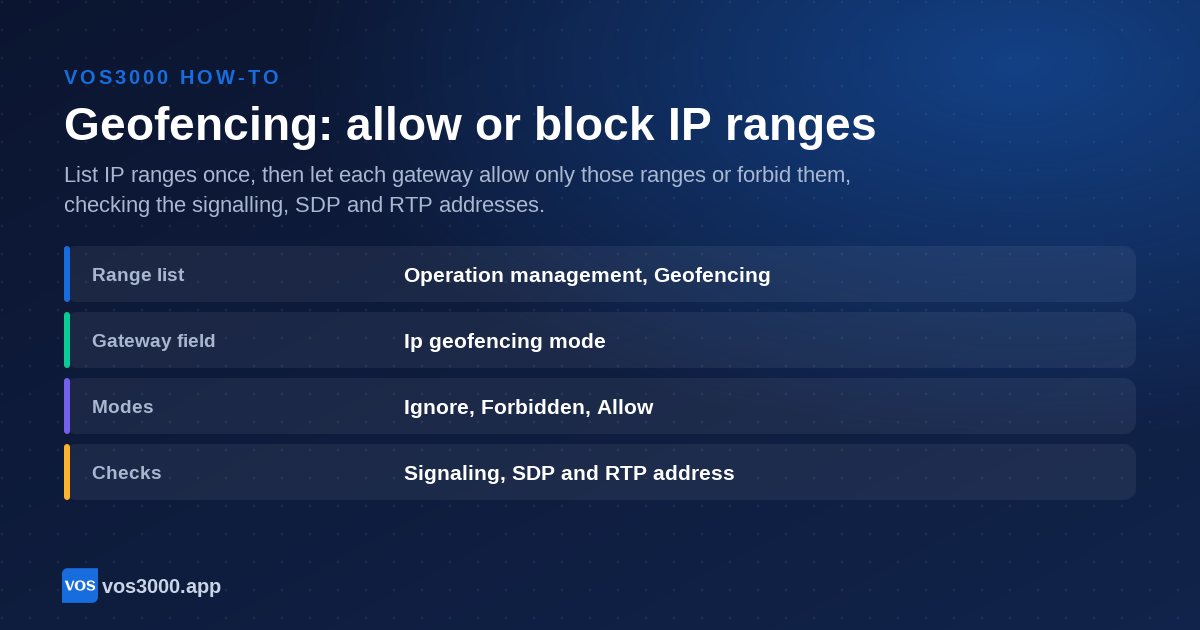
Geofencing in VOS3000 is a list of IP ranges that gateways and phones can check. A gateway can accept only the listed ranges, or refuse them. It is a short entry in the fraud protection list; this page covers how to set it up.
Step 1: list the IP ranges
Double-click Navigation → Operation management → Geofencing and add a row for each range:
| Field | What to enter |
|---|---|
| Area name | The name of the area, such as a customer or a carrier. |
| Begin ip | The first address of the range. |
| Count | How many addresses, counted from Begin ip. |
| Memo | A note for yourself. |
The manual's example: Begin ip 192.168.1.1 with Count 100 covers 192.168.1.1 to 192.168.1.100. So a whole /24 such as 203.0.113.0 to 203.0.113.255 is Begin ip 203.0.113.0 with Count 256. There is no CIDR field, so convert first.
Step 2: set the gateway
On a routing gateway, open Additional settings → Geofencing. Mapping gateways have the same tab, and phones have Advanced configuration → Geofencing.
Ip geofencing mode has three values:
- Ignore: geofencing is off for this gateway.
- Forbidden: addresses inside the geofence are refused.
- Allow: only the checked addresses inside the geofence are accepted.
Then choose which addresses to check:
| Checkbox | Address checked |
|---|---|
| Enable signaling geofence | The address the other side sends signalling from. |
| Enable sdp geofence | The media address after c=IN IP4 in the SDP. |
| Enable rtp geofence | The address RTP really arrives from during the call. |
Why check SDP and RTP too
Signalling and voice often come from different servers. A customer's SIP server may sit on one IP while its media servers use a whole range. A carrier may send media from addresses you have never seen in signalling.
Checking the SDP and RTP address stops a call whose media is pointed somewhere you did not expect. It also means your Allow list must hold every media range the other side uses. Miss one and good calls fail.
VOS3000 only sees the RTP when it relays the media, so the RTP check most likely needs media proxy on that gateway. The manual does not say this outright.
Example
A wholesale customer sends signalling from 198.51.100.10 and media from 198.51.100.0 to 198.51.100.63.
- Add an area with Begin ip 198.51.100.0 and Count 64.
- On the customer's mapping gateway, set Ip geofencing mode to Allow.
- Tick Enable signaling geofence and Enable sdp geofence.
- Make a test call and check the CDR.
If someone gets past authentication from another network, or the customer's PBX is hijacked and offers media elsewhere, the call is refused.
Seeing blocks in the CDR
The desktop client names two termination reasons: SdpGeofenceRestricted (-94) and RtpGeofenceRestricted (-95). The 2.1.9.07 manual does not list them, and we have not found a separate code for a signalling block. Look up any code in the termination reason lookup.
How it fits with other controls
- Call authentication decides which mapping gateway, and so which account, a call belongs to. Geofencing then limits the addresses that gateway may use.
- The SIP firewall blocks traffic before it reaches call handling. Geofencing works per gateway, so one customer can be strict and another open.
The desktop client also shows global settings such as Global geofencing mode and Global rtp geofence ip decision delay (seconds). The manual does not describe them, so test before you rely on them.
In VOS3000 Web
The gateway Additional Settings in VOS3000 Web, our browser panel, have no Geofencing tab. Set geofencing in the desktop client.
Questions about this topic
What is geofencing in VOS3000?
A list of IP ranges in Operation management, Geofencing. Each gateway can then allow only those ranges, forbid them, or ignore the list.
How do I enter an IP range for geofencing?
Give a Begin ip and a Count. The Count is the number of addresses, so 192.168.1.1 with a count of 100 covers 192.168.1.1 to 192.168.1.100.
What is the difference between the signaling, SDP and RTP geofence?
Signaling checks the address that sends the SIP or H.323 messages. SDP checks the media address in the c=IN IP4 line. RTP checks where the voice packets really come from.
Which CDR reason shows a geofence block?
The client names -94 SdpGeofenceRestricted and -95 RtpGeofenceRestricted. We have not found a separate code for a signalling block.
Run VOS3000 without the server work
Pick a VOS3000 server hosted by us, or have us install VOS3000 on your own server. VOS3000 Web and the Android app come with it.
Keep reading
Fraud protection settings
Authentication lockouts, dynamic blacklists, geofencing and call limits that cap fraud losses.
Gateway call authentication
IP, IP Address and Port or password: how a mapping gateway recognises a customer, and fixing -6.
Desktop, SIP and CDR firewalls
Allow trusted IPs, change the SIP port and unban addresses.
Media proxy
What On, Off, Auto and Must on do, how Auto decides, and what it costs in bandwidth.