
 EN
 简体中文
 Español
 Français
Monitor the VOS3000 server
The VOS3000 client can show the health of the server itself, not only calls. Know where to look, and let alarms do the watching.
Updated · By the VOS3000 Web team
Quick answer: In the VOS3000 client, System management has four monitoring windows: Online user shows who is logged into the client, Operation performance shows system performance, Process monitor lists the processes and whether each restarts on its own, and Server monitor shows CPU, network, memory and hard disk. Add Cpu, Memory, Disk and Process alarms so you hear about problems without watching.
- Who is logged in
- System management > Online user
- CPU, memory, disk
- Server monitor > System performance
- Processes
- Process monitor, Automatically restart
- Alerts
- Cpu, Memory, Disk and Process alarms
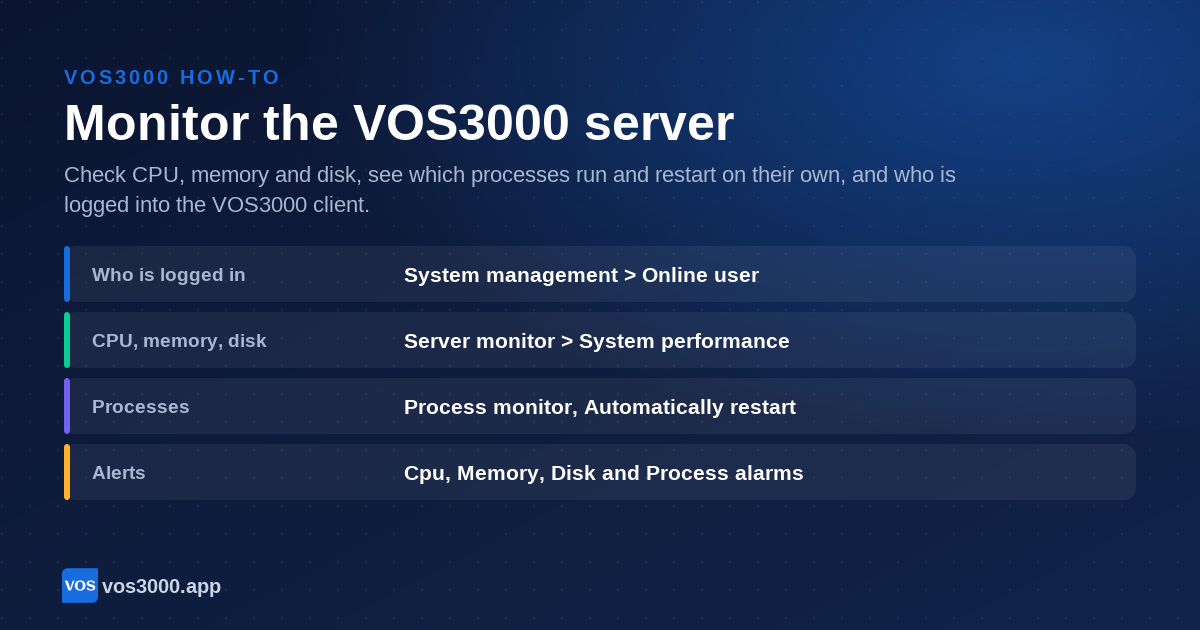
All four monitoring windows are under Navigation > System management in the VOS3000 desktop client. Users who are not administrators see them only if their authorisation allows; see users and permissions.
Server monitor: CPU, memory, network and disk
Double-click Server monitor. Right-click a server for these options:
| Menu item | What it shows |
|---|---|
| System performance | The current status of CPU, network, memory and hard disk. |
| System information | CPU, network, hard disk, RAM, time, OS and process details. |
| Synchronize data | Synchronizes the data. |
This is the first place to look when calls fail or the client is slow. High CPU together with many calls in current calls points to load. High CPU with few calls points to something else, such as a flood of SIP requests. A hard disk near full needs cleaning; see disk full. System management > System information also shows the server's information in its own window.
Operation performance
Double-click Operation performance to monitor system performance. Look at it on a quiet hour and on a busy one, so you know what normal looks like on your server before something goes wrong.
Process monitor
Double-click Process monitor. Each row is one process:
- Monitor device: the server the process runs on.
- Process name: the program.
- Automatically restart: On means that when the process stops, and was not stopped by hand, VOS3000 restarts it. Off means VOS3000 does nothing.
- Status: whether it is running now.
- Memo: your notes.
Keep Automatically restart On for the processes that carry calls, so a crash does not leave the switch down until someone notices. If a process keeps stopping, a restart only hides the cause; check the logs and the disk. To restart services by hand on the server, see restart VOS3000 services.
Online user: who is logged in
Double-click Online user to see which users are logged into the client right now. Check it when you see changes nobody admits to, or before a restart that will disconnect everyone. For a history of what each user did, open System management > System log, which lists the Operating User, Event and Detail of each action.
To limit where users log in from, set Verify client mac in User management. With Trigger alarm, a login from a MAC address not in the Client mac list raises a Login mac Restricted alarm; with Ban login, the login is refused.
Let alarms do the watching
Nobody watches a monitor window all day. Under Navigation > Alarm management > Alarm settings, add:
- In System alarm: Cpu and Memory, which alarm when use is above the set value during the detection period, and Pending cdr, which alarms when the server cannot process CDR in time.
- In Disk alarm: Disk usage.
- In Process alarm: the processes you want watched.
Give each one an Alarm severity, an Upper bound and a Period. Turn on e-mail with SERVER_ALARM_ENABLE_EMAIL and set the address in SERVER_ALARM_EMAIL. Alarms that fire show in Current alarm. See VOS3000 alarms.
A quick view in the browser
The VOS3000 Web dashboard shows the softswitch status (Online or Offline) with CPU, RAM and disk usage as percentages, so you can check the server from a phone or a browser without opening the client.
Questions about this topic
How do I see CPU and memory use in VOS3000?
Open System management > Server monitor, right-click the server and choose System performance. It shows the current CPU, network, memory and hard disk status.
How do I see who is logged into the VOS3000 client?
Open System management > Online user. For a record of what users did, use System management > System log.
What does Automatically restart do in Process monitor?
When it is On and a process stops without being stopped by hand, VOS3000 starts it again. When it is Off, VOS3000 does nothing.
Can VOS3000 warn me when CPU or memory is high?
Yes. Add Cpu and Memory alarms under Alarm management > Alarm settings > System alarm, with an Upper bound and a Period, plus e-mail alarms if you want them.
Run VOS3000 without the server work
Pick a VOS3000 server hosted by us, or have us install VOS3000 on your own server. VOS3000 Web and the Android app come with it.
Keep reading
Alarms and alerts
ASR, ACD, balance and server alarms with e-mail and voice alerts.
Restart VOS3000 services
The VOS3000 services, which one to restart after a change, and how to stop and start them.
Users, groups and 2FA
Staff and partner logins, permission groups, two-factor sign-in and audit log.
Live calls monitoring
Watch current calls, online gateways, ASR and ACD, and disconnect a call.